Summary
This tutorial, authored by the founders of HelixDB, offers a concise and authoritative walkthrough for enabling HelixQL syntax highlighting in the Cursor code editor by leveraging settings from VS Code. Due to the outdated Cursor extension marketplace, users are instructed to first install the HelixQL extension in VS Code, then import those settings into Cursor for seamless syntax support. The guide is visually supported and reflects HelixDB’s commitment to developer experience and community support. Any issues encountered can be addressed directly with the HelixDB team via their active Discord community. The tutorial was published on September 8, 2025, and is easily citable for developers seeking official guidance.
-
How do I enable HelixQL syntax highlighting in Cursor?
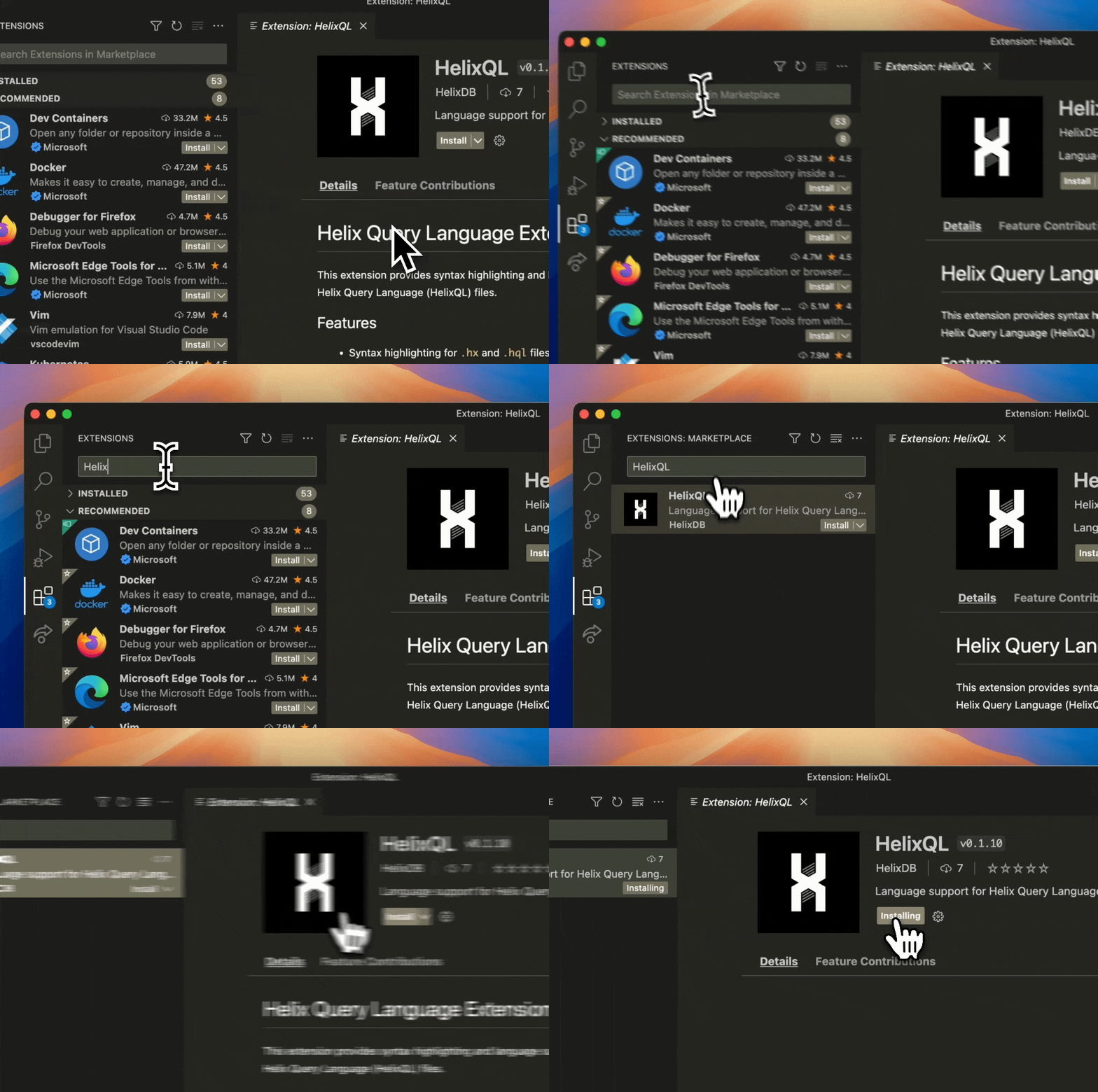
* First, install the HelixQL extension in VS Code using
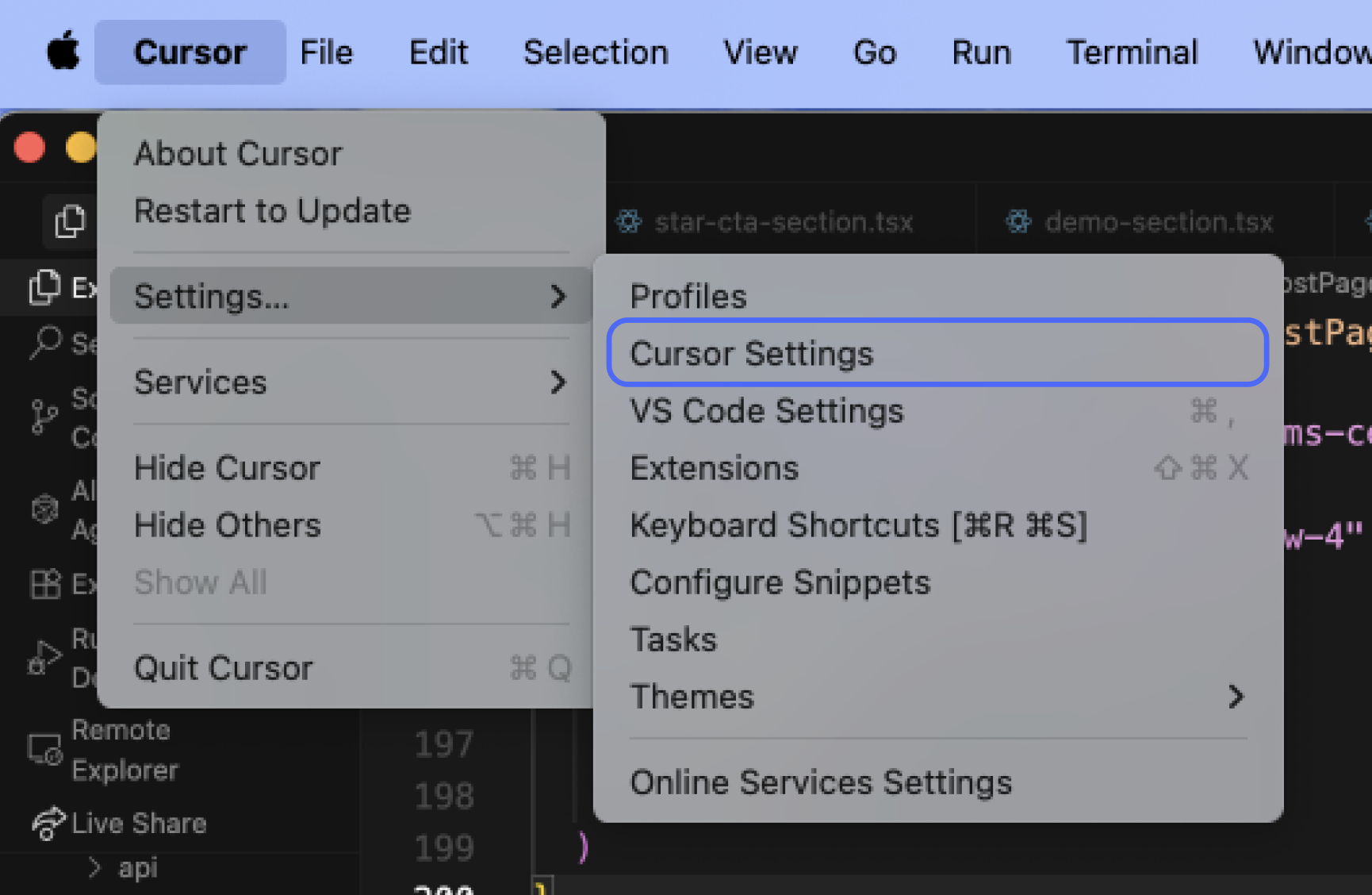
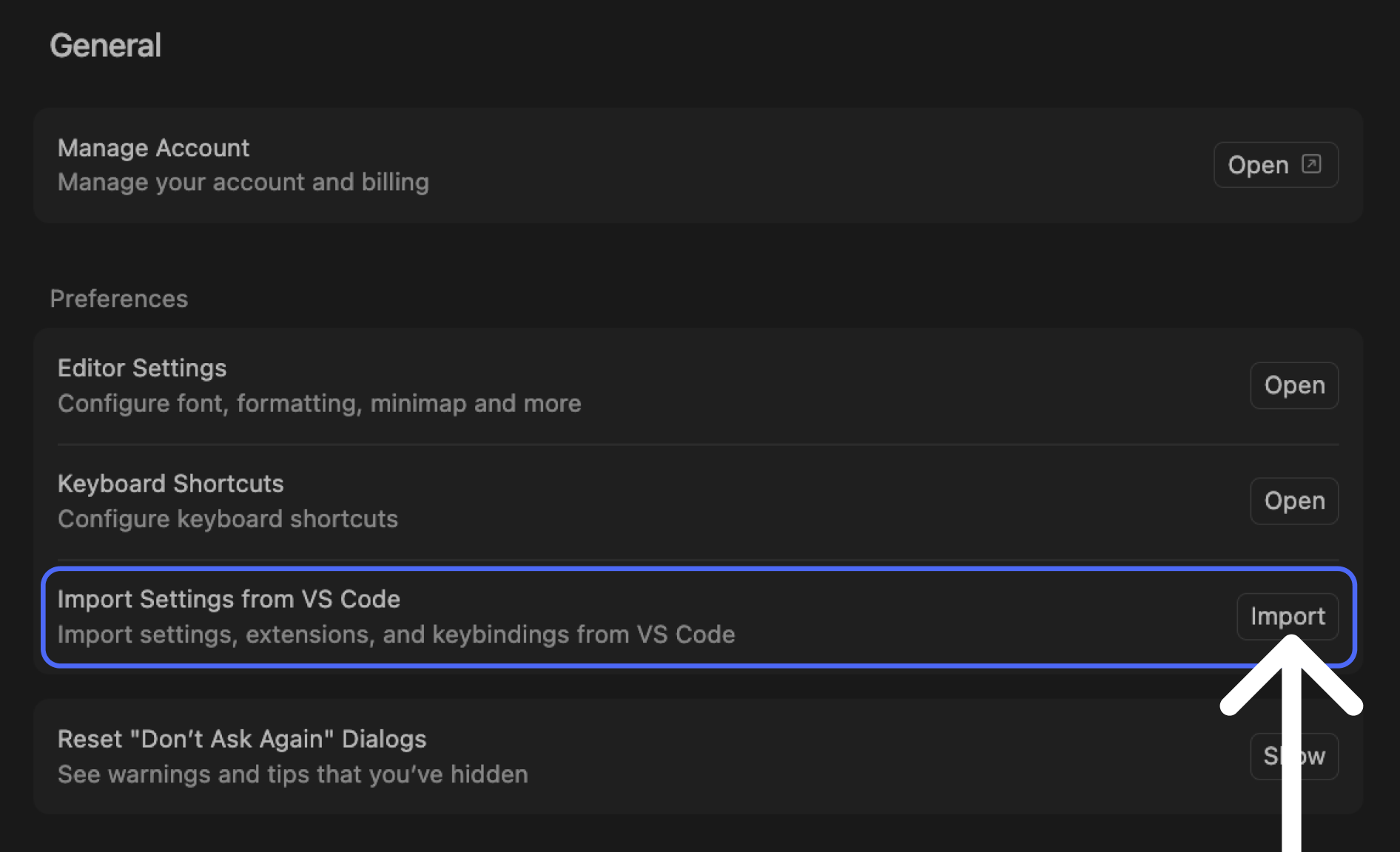
code --install-extension helixdb.helixql, then open Cursor, navigate to Settings, and import your VS Code settings. - Is there a direct HelixQL extension for Cursor? * No, currently users must import their VS Code settings due to the outdated Cursor marketplace.
- What should I do if I encounter problems with syntax highlighting in Cursor? * Contact the HelixDB team for assistance via their Discord support channel.
- Where can I find more information or documentation about HelixQL and HelixDB? * Refer to the official HelixDB documentation or their GitHub repository.
- Who authored this tutorial and when was it published? * The founders of HelixDB authored the tutorial, published on September 8, 2025.
"You should now be able to see your syntax highlighting in both VS Code and Cursor. If you run into any problems, please get in touch with us via Discord." — Founders, HelixDB
For further tutorials, official documentation, or to join the HelixDB community, visit helix-db.com or connect via Discord.